
Guides
Setting up window layouts for 3, 4 or 5 monitors
With two monitors you can get by with dragging. With three, four or five, dragging windows around becomes a daily chore, and one sleep cycle can undo all of it. Traders, developers, editors and streamers need each screen to have a job and every window to have a home. This guide shows how to plan a desk of many monitors, give each screen its own zone layout, move windows between them from the keyboard and save the whole arrangement so it comes back in one click.
-
Know the limits of the built-in tools
Windows Snap Layouts (Win+Z on Windows 11) works on one monitor at a time and forgets the arrangement once the windows are closed or moved. Win+Shift+Left and Right move a window one screen sideways, which gets slow when the target is four screens away or when monitors are stacked vertically. Microsoft PowerToys FancyZones is a good free option for custom zones, but it does not save and restore which window was in which zone across all monitors. For a large desk you want both: zones per monitor and a saved layout.
-
Identify your monitors and give each one a role
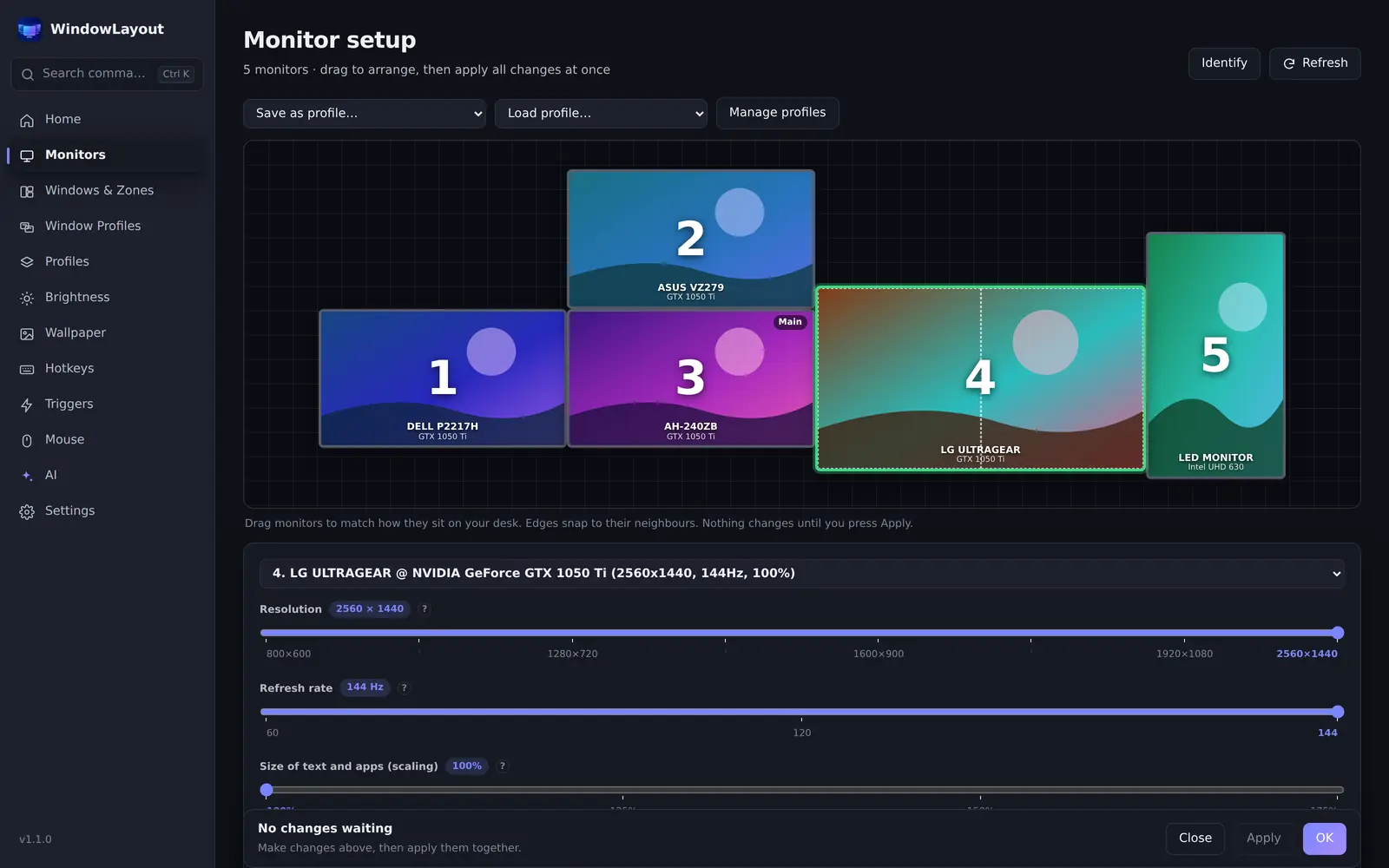
Open WindowLayout’s Monitors page, which shows every display as it is physically arranged, with a live preview of each screen and its resolution, refresh rate and scaling. Press Ctrl+Alt+I to flash a large number on each screen so you know which is which. Then decide on roles, for example: center monitor for the main app, left for reference, right for communication, a portrait screen for chat or code, and a top monitor for dashboards. Fix the arrangement first, by dragging the screens on the Monitors page or in Windows display settings, so that moving the mouse between screens feels natural.
-
Choose a zone layout for each monitor
Open Windows & Zones and, under Zone layouts, pick a layout per monitor. The built-in layouts are Halves, Thirds, 2 × 2 grid, Priority 25/50/25 and Three rows. Priority 25/50/25 suits an ultrawide center screen, Three rows suits a portrait monitor, and a 2 × 2 grid works for dashboards. Set Gap between snapped windows if you like a little space around each window. Layouts are stored per physical monitor, so they stay attached to the right screen even if Windows renumbers the displays.
-
Put windows into their zones
Click Arrange windows now to place the windows already on a monitor into its zones in one go. To place a single window, use the Next zone hotkey (Ctrl+Alt+PageDown) and Previous zone (Ctrl+Alt+PageUp): the window steps through the zones of its monitor and, past the last zone, continues onto the next monitor. That makes it easy to send a window across a five-monitor desk without touching the mouse. The Windows & Zones page also lists every open window with a Move to menu.
-
Save the whole desk as a window profile
When everything is in place, open Window Profiles and click Save current. A profile can hold up to 32 monitors and 500 windows, records each window's monitor, position, maximized or minimized state and stacking order, and is restored with Restore now, a Hotkey of your choice, the tray menu or the command palette. Turn on Restore stacking order if overlapping windows matter, and Include minimized windows if you keep some apps parked.
-
Keep it together after sleep and changes
Large desks are the most likely to scramble when monitors wake one by one. Switch on Restore windows after monitor changes, sleep and unlock under Automation, and Apply automatically when this setup connects for your profile. If you also switch resolutions or orientation, save a display profile on the Profiles page and apply it from the tray. If you want custom zones beyond the built-in layouts, the optional AI assistant, off by default, has a Layout designer that drafts zone layouts for every monitor from a description; you review the plan before anything changes.
Frequently asked questions
Is there a limit to how many monitors WindowLayout supports?
It works with as many monitors as Windows exposes. A single window profile can store up to 32 monitors and 500 windows, which covers even very large desks.
Can I draw my own zones by hand?
There is no drag-to-draw zone editor. Pick a built-in layout per monitor, or use the optional AI Layout designer for custom layouts you review first. For your own proportions, Split & padding on the Monitors page divides a monitor into columns and rows with draggable dividers, and the areas act like separate monitors.
My monitors have different resolutions and scaling. Does that cause problems?
No. Zones are defined as fractions of each monitor's work area, and window profiles handle different scaling per monitor, so windows keep their intended size and position on each screen.
Try it on your own desk
WindowLayout is free, about 3 MB, works offline and has no ads or telemetry. Save your first window layout in under a minute.